
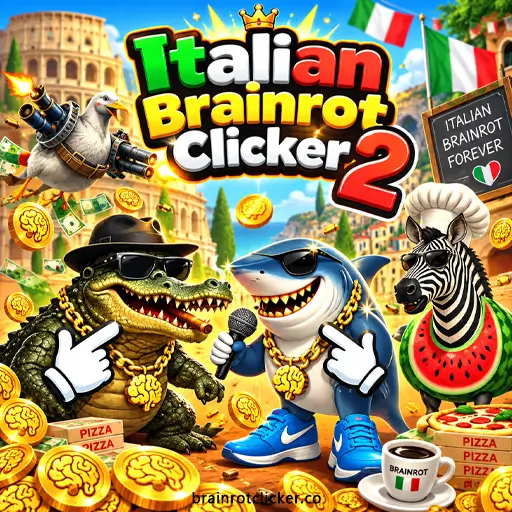



Italian Brainrot Clicker 2 is a browser clicker game where you earn Brainrot, improve your clicking power, build automatic income, and unlock a collection of 12 meme characters. Start by clicking or tapping Tralalero Tralala, then spend your first points on Cursor and Auto Click. As production grows, new portraits, weather options, and stronger shop purchases give you more to work toward.
You can play on this page using a mouse, phone, or tablet. If you enjoy choosing between active tapping and steady automatic production, explore our Clicker Games and Idle Games collections. Our homepage game, Brainrot Clicker, offers another character-collecting challenge with its own progression systems.
What Is Italian Brainrot Clicker 2?
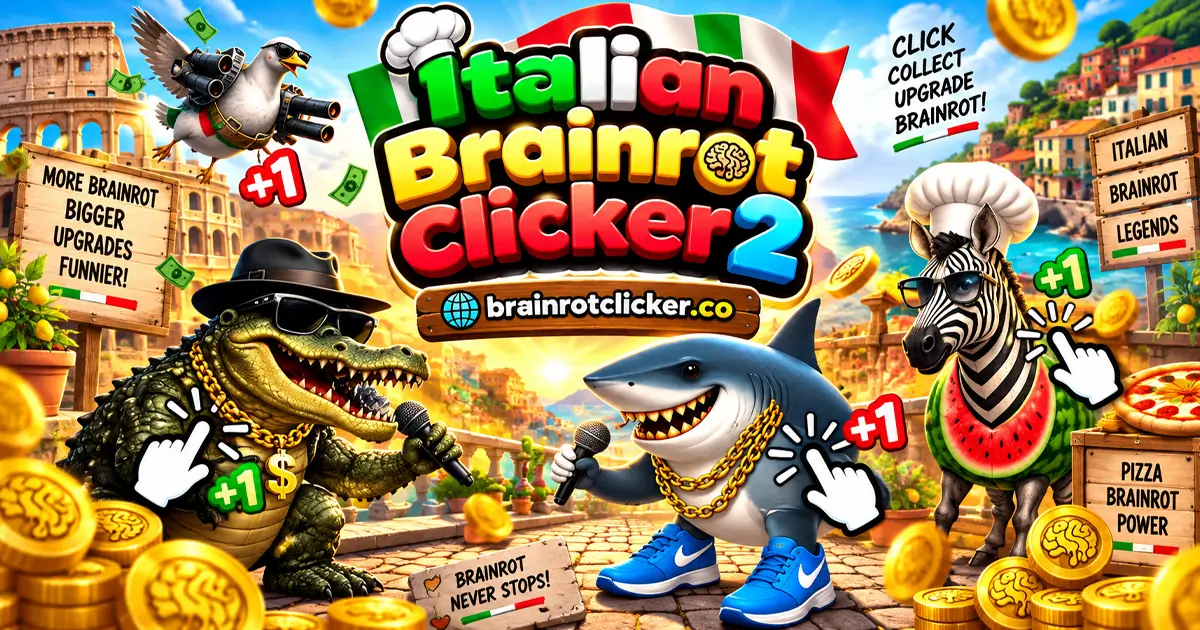
The game turns the Italian Brainrot meme theme into an incremental challenge. Its characters combine animals, everyday objects, unusual names, and exaggerated designs: a sneaker-wearing shark is your starting companion, while a flying crocodile and a banana-bodied chimpanzee appear in the collection.
The main decisions happen in the upgrade shop. Clicking earns the first points, but each purchase changes how quickly you can afford the next one. Some cards add Brainrot to every click; others add Brainrot per second. Your job is to build a useful balance between those two sources while progressing through the collection.
| Feature | What to Know |
|---|---|
| Currency | Brainrot pays for production upgrades. |
| Active income | Click Power determines the value of a manual click or tap. |
| Automatic income | Brainrot Per Second shows your current automatic production. |
| Character collection | The Skins menu contains 12 characters. |
| Active bonus | The red 2× meter can double both displayed income rates. |
| Other menus | Weather, settings, leaderboard, and ascension controls. |
| Progress tools | Browser saving plus save-file controls in Settings. |
How to Play Italian Brainrot Clicker 2
- Click or tap the starting character. Earn Brainrot until you can afford your first shop purchase.
- Buy Cursor for 50 Brainrot. Each level adds one point to your base click power.
- Buy Auto Click for 125 Brainrot. Its first level adds one Brainrot per second before bonuses.
- Keep clicking to activate the 2× meter. Watch the Click Power and Brainrot Per Second counters to see the active bonus.
- Choose your next upgrade. Add click power for active play or automatic production for a steadier income.
- Check the Skins and Weather menus. Select available options as your collection grows.
- Protect your progress. Continue in the same browser and check the save-file controls in Settings before making major changes.
When a shop card is dark and marked with question marks, its details are still hidden. More information becomes visible as you progress. The price remains useful even before you know the card's full effect: it tells you how far away that purchase is.
Desktop and Mobile Controls
| Action | Desktop | Phone or Tablet |
|---|---|---|
| Earn Brainrot | Left-click the central character. | Tap the central character. |
| Purchase an upgrade | Click an affordable shop card. | Tap an affordable shop card. |
| Browse the shop | Scroll inside the upgrade panel. | Swipe inside the upgrade panel. |
| Browse characters or weather | Open the matching icon and click the carousel arrows. | Open the matching icon and tap the carousel arrows. |
| Adjust sound | Open the gear icon and adjust the music or sound slider. | Open the gear icon and adjust the music or sound slider. |
There are no movement controls to learn for the main clicking loop. On smaller screens, choose the orientation that makes the character and shop easiest to reach. When scrolling, start your gesture inside the shop so you browse upgrades rather than move the surrounding webpage.
Upgrades, Costs, and Production
The first four shop cards establish the difference between manual and automatic income. Their displayed effects describe the base increase; an active 2× bonus can make the change in your counters look larger.
| Upgrade | Displayed Price | Base Effect per Purchase | Useful For |
|---|---|---|---|
| Cursor | 50 Brainrot | +1 point per click | Small, affordable improvements to active tapping. |
| Auto Click | 125 Brainrot | +1 point per second | Starting automatic production. |
| Mr Clicker | 500 Brainrot | +5 points per click | A larger manual-income purchase. |
| Tralalero Tralala Farm | 1,100 Brainrot | +6 points per second | Increasing automatic production beyond the first Auto Click level. |
Repeat purchases add more levels. Cursor's displayed price remains 50 through its early repeat purchases, so a higher level does not automatically mean a higher price. Read each card before buying and use the current price when comparing value.
Also separate your balance from your production rates. The balance is money available to spend now. Click Power and Brainrot Per Second describe how quickly you can replace that money. A large balance with weak production can disappear quickly; stronger production makes later purchases easier to recover from.
Which Upgrade Should You Buy Next?
Compare Small Purchases Before Saving for a Bigger Card
A more expensive card is not automatically a better deal. At the prices above, five Cursor purchases cost 250 Brainrot and add five points per click. One Mr Clicker costs 500 for the same base increase. If both choices are available at those prices, Cursor supplies that amount of click power for half the cost.
The same comparison works for automatic income. Six Auto Click purchases cost 750 Brainrot and add six points per second before bonuses. One Farm costs 1,100 for the same listed increase. Check whether a larger purchase offers better value instead of choosing it only because it looks more advanced.
Match Production to the Time You Spend Clicking
Per-click income depends on your input. If you make three clicks per second, a +1 click upgrade adds roughly three Brainrot per second while you maintain that pace. A +1 automatic upgrade adds one Brainrot per second while the game is running, including moments when you are checking menus.
This gives active players a reason to keep improving Cursor. Automatic upgrades become more useful when you stop frequently, browse the collection, or want to rest your hand. A few levels of both types let you switch between those habits without bringing progress to a halt.
Use Payback as a Simple Guide
Divide a purchase's cost by the extra income you expect it to produce. At its base rate, a 125-point Auto Click level takes about 125 seconds to generate 125 points. A 50-point Cursor level used at three clicks per second takes about 17 seconds to generate 50 extra points.
Those examples assume constant clicking where relevant and no multiplier. The active 2× bonus shortens payback while it lasts. Your actual result changes when your clicking pace or bonus state changes, so use the calculation as a comparison rather than a promise about exact completion time.
How the 2× Meter Works
The red meter rewards active clicking. When the 2× effect is active, it affects both manual clicks and automatic production. For example, two Cursor levels give a base Click Power of three, including the starting point. With one Auto Click level, base automatic income is one per second. Under 2×, those counters become six and two.
This explains why an upgrade labeled +1 can appear to add two to an active counter. The card describes its base effect, while the current counter includes the multiplier. Compare upgrades in the same bonus state to avoid mistaking a temporary boost for a permanent purchase effect.
Watch the meter and counters during play instead of assuming a fixed bonus duration. You can use short clicking sessions to activate the effect, check your next purchase, and return to the character when you are ready to continue.
All 12 Characters in Italian Brainrot Clicker 2
Open the shirt icon to browse the Skins carousel. It displays character names and shows whether each portrait is selected or locked. The gallery contains these 12 characters:
| Character | Appearance |
|---|---|
| Tralalero Tralala | The starting shark wearing blue sneakers. |
| Bombardiro Crocodilo | A crocodile combined with an aircraft. |
| Tung Tung Tung Sahur | A wooden figure holding a bat. |
| Brr Brr Patapim | A tree-like creature with oversized feet. |
| Lirili Larila | An elephant-and-cactus combination wearing sandals. |
| Bobritto Bandito | A suited rodent carrying a weapon. |
| Bombombini Gusini | A goose combined with jet engines. |
| Burbaloni Luliloli | A capybara with a coconut-shaped body. |
| Capuchino Assassino | A ninja-themed coffee-cup character. |
| Chimpanzini Bananini | A chimpanzee emerging from a banana. |
| Trippi Troppi | A cat-and-shrimp combination. |
| Zibra Zubra Zibralini | A zebra with a watermelon-shaped body. |
Keep earning Brainrot and building production to discover more portraits. Check the gallery when a character notification appears, then select an available portrait. A locked picture shows you what remains to collect, but it does not provide an exact numerical requirement in the gallery view.
Use this build's collection as your reference. Similarly named games can share characters while using different unlock rules, currencies, or progression systems.
Weather and Visual Options
The cloud icon opens the Weather menu. Normal, Rain, and Snowing appear among its options, with unavailable choices marked as locked. Rain introduces a visible falling-rain effect over the scene, giving the background a different feel while the main clicking and shop controls remain familiar.
Browse the weather carousel when you want to change the presentation. The weather menu does not establish a production bonus, so make spending decisions using the Click Power and Brainrot Per Second counters rather than the background's appearance.
Ascension and the Multiplier Display
The bottom of the upgrade panel contains an Ascension Multiplier display and an Ascend button. At the beginning, the multiplier reads 1.0x and the button shows 0x. These are separate from the temporary 2× clicking meter.
A starting 0x display gives you no reason to rush the button. Continue developing production and revisit it later. Before accepting an ascension, read any explanation the game presents and keep a backup if you want to protect the current run. The visible controls alone do not establish which characters, weather options, or purchases carry over.
Beginner Tips and Common Mistakes
- Compare equivalent gains. Several inexpensive purchases can cost less than one larger card that adds the same production.
- Check the bonus state. A counter falling from six to three may reflect the end of 2× rather than a lost upgrade.
- Build some automatic income. Auto Click lets production continue while you browse menus with the game open.
- Keep active upgrades useful. A strong automatic rate does not replace the extra income available from your manual clicks.
- Check new collection notifications. The shirt and cloud icons help you find newly available character and weather choices.
- Read the current card price. Do not assume repeat purchases always become more expensive.
- Avoid treating the balance as a lifetime total. Spending reduces available currency; it does not by itself explain how an unlock requirement is calculated.
- Give your hand a break. Once automatic production is running, you can pause tapping while keeping the game open.
Saved Progress, Backup Files, and Browser Help
The game retained its balance, purchased upgrade levels, and an unlocked character after a normal reload in the same browser. Use that same browser and device when returning to your run. Clearing site data, changing browser profiles, or using a private session can affect access to browser-stored progress.
Settings also includes Save to file and a file-loading control. These provide a way to manage a save separately from the page's regular browser storage. Keep your original backup when trying the loading option, and check the restored balance and upgrade levels before relying on it.
A backup file is useful to keep before a browser cleanup or a major progression decision. Its presence does not guarantee automatic synchronization between devices. Likewise, automatic income while the game is open does not establish that earnings continue after you close it.
If the game does not load, first check your connection and allow the initial loading screen to finish. If the shop or menus feel cramped on mobile, try the other screen orientation. Avoid clearing browser storage as the first troubleshooting step when it may contain your current save.
Settings and the Leaderboard Menu
The gear icon contains separate music and sound-effect controls, along with the player-name field and save tools. Adjusting the two sound sliders separately is useful when you want to lower the background music while keeping feedback from your clicks.
The leaderboard icon opens Today, Week, Month, and All Time tabs, with columns for rank, region, name, and ascend. A blank table does not affect the basic clicking loop. You can continue building your own production and collection without treating the leaderboard as a requirement for progress.
Similar Games
Try another Brainrot game after this sequel, or change the theme with a chill, animal or collectible-character clicker.
More Brainrot Characters
For more Brainrot-themed clicking, explore Brainrot Clicker, Italian Brainrot Clicker, Tung Sahur Clicker and Tralalero Tralala Clicker. Choose a collection-focused title or follow a favorite character into another upgrade loop.
Chill and Capybara Themes
For a different character style, try Chill Guy Clicker, Chill Girl Clicker, Capybara Clicker and Capybara Clicker 2. These choices keep the focus on earning and upgrades while changing the character and collection you work toward.
Other Character Clickers
Change the cast with Sprunki Clicker, Chicken Jockey Clicker and Labubu Clicker. Pick the character theme you want to explore next, then use that game's guide for its own currencies, upgrades and unlocks.
Frequently Asked Questions
What is Italian Brainrot Clicker 2?
It is a browser clicker game where you earn Brainrot, purchase manual and automatic production upgrades, and unlock a collection of 12 meme characters.
How do you get Auto Click in Italian Brainrot Clicker 2?
Earn 125 Brainrot and buy Auto Click in the upgrade shop. Its first level adds one Brainrot per second before multipliers, and further purchases add more levels.
Can you buy the same upgrade more than once?
Yes. Upgrades such as Cursor and Auto Click support repeat purchases. Each purchase increases the card's level and adds its listed base production effect.
Why does my click power sometimes double?
The active 2× meter doubles the displayed click power. It also doubles the automatic Brainrot Per Second rate while the effect is active.
How many characters are in the game?
The Skins gallery contains 12 characters, beginning with Tralalero Tralala. Open the shirt icon and use the carousel arrows to browse the collection.
Does Italian Brainrot Clicker 2 work on mobile?
Yes. This version works on phones and tablets. Tap the character to earn Brainrot and tap shop cards to buy upgrades.
Does Italian Brainrot Clicker 2 save progress?
A normal reload in the same browser retained the balance, purchased upgrades, and an unlocked character. Settings also includes save-file and file-loading controls.
Does automatic income continue when I close the game?
Automatic production works while the game is running. Do not rely on earnings after closing it, because closed-game income has not been established for this build.
Do I need to download the game?
No separate installation is required. You can play Italian Brainrot Clicker 2 in the browser on this page.
Is Italian Brainrot Clicker 2 unblocked?
Access depends on your school, workplace, or network settings. A browser game cannot guarantee access through restrictions set by the network administrator.
Does a character's appearance tell me its production bonus?
Use the Click Power and Brainrot Per Second counters to judge production. The gallery's names and portraits alone do not establish an income bonus.
Conclusion
Italian Brainrot Clicker 2 gives you clear early choices: strengthen each tap, start automatic income, and use the 2× meter to get more from both. Comparing equal production gains is more useful than always saving for the most expensive visible card.
As your run grows, check the 12-character gallery, explore available weather options, and keep your save protected. Start with Cursor and Auto Click, watch how your counters change, and let each purchase help fund the next one.