
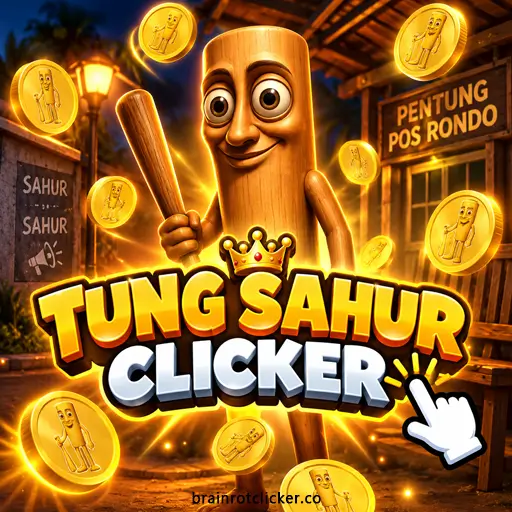





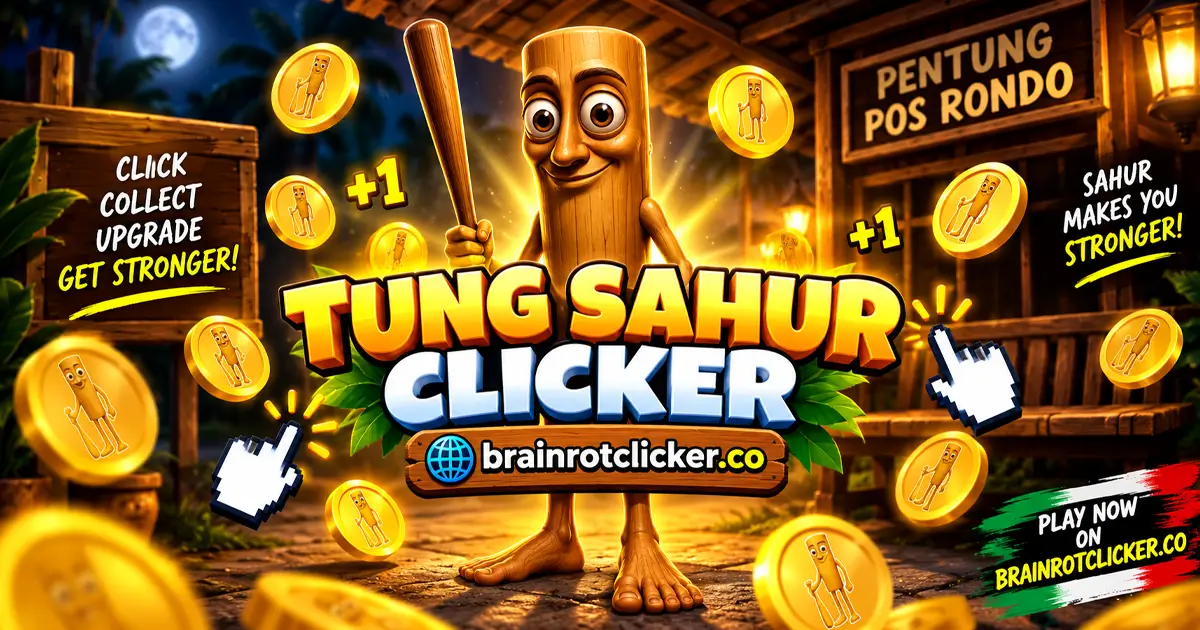
Tung Sahur Clicker turns a wooden character with a baseball bat into the center of a growing Brainrot counter. Click or tap Tung Tung Sahur, spend your earnings on stronger clicks and automatic production, and work toward new looks for the character. Keep clicking quickly enough and the scene changes: Sahur starts dancing, the background becomes a street corner at night, and a temporary 2× bonus lifts your earnings.
Play Tung Sahur Clicker here on Brainrot Clicker, then use the guide below to compare your first purchases. If you have tried our homepage game, Brainrot Clicker, the familiar click-and-upgrade loop is easy to pick up. You can also explore our Clicker Games and Idle Games categories for more games built around manual clicks and growing automatic income.
What Is Tung Sahur Clicker?
Tung Sahur Clicker is a browser-based idle clicker starring Tung Tung Sahur. You may also see players search for it as Tung Tung Sahur Clicker or Tung Tung Tung Sahur Clicker. Here, the goal is to build your Brainrot balance, improve your production, and open up the skin and weather collections.
The gold icons look like coins, but the game's income counters use the name Brainrot. Your balance is what you can spend. Click Power tells you how much a manual click earns, while Brainrot Per Second shows your automatic production. At the start, Click Power is +1 and automatic production is zero. Buying an Auto Click upgrade changes that: you have a source of income even between manual clicks.
The appeal is choosing what to improve next. A stronger click makes an active session more productive; automatic income keeps the counter moving while you browse the shop. New skins give you something else to work toward besides a larger number.
How to Play Tung Sahur Clicker
- Start earning Brainrot. Click or tap Tung Tung Sahur in the center of the game. On a keyboard, you can also use the spacebar.
- Buy your first Cursor. At the displayed price of 50 Brainrot, Cursor adds +1 to your base Click Power.
- Add automatic income. Save 125 Brainrot for Auto Click, which adds +1 Brainrot per second at the starting multiplier.
- Compare your next upgrades. Check each card's cost and whether it improves manual clicks or automatic production before spending your balance.
- Activate the 2× bonus. Click rapidly to fill the meter, then keep earning while the temporary doubled-production state is active.
- Check your collections. Open the skin and weather menus to see which choices are unlocked and select an available option.
- Return and claim available earnings. Continue in the same browser, and use Take if the game displays an Offline Earnings panel.
Those steps establish a useful starting loop without relying on a late-game shortcut. Make a purchase, check the production counters, and decide whether your next few minutes will be mostly active clicking or a slower automatic build.
Mouse, Keyboard, and Mobile Controls
| Input | What it does |
|---|---|
| Mouse click on Sahur | Earn manual Brainrot and build the clicking meter. |
| Spacebar | Generate manual income while the game has keyboard focus. |
| Tap on Sahur | Use the main earning action on a phone or tablet. |
| Click or tap an upgrade card | Purchase that upgrade when your balance covers its cost. |
| Menu buttons and arrows | Browse skins, weather, and settings. |
Tung Sahur Clicker works on desktop computers, phones, and tablets. Touch players use the on-screen buttons rather than needing a keyboard. If the spacebar scrolls the webpage instead of affecting the game, click inside the game first. Give the game focus before using keyboard controls.
Early Upgrades: Prices and Base Effects
The first shop cards separate into two jobs: stronger manual clicks and automatic production. The table below uses the displayed early prices and the base effects at a 1.0× multiplier, outside the temporary 2× bonus.
| Upgrade | Displayed price | Base effect | Best suited to |
|---|---|---|---|
| Cursor | 50 Brainrot | +1 per click | Small, affordable improvements to active clicking. |
| Auto Click | 125 Brainrot | +1 per second | Starting your automatic income. |
| Mr Clicker | 500 Brainrot | +5 per click | A larger manual-income purchase. |
| Tung Sahur Farm | 1,100 Brainrot | +6 per second | A larger automatic-production purchase. |
Read the card before buying. An upgrade with a more impressive name is not automatically the best-value choice. Also separate the listed base effect from your current total: the active 2× bonus can make the income counters show twice the normal amount without changing how many upgrade levels you own.
Which Upgrade Is the Best Value?
For manual production, divide the price by the added Click Power. At the prices above, Cursor costs 50 Brainrot for each added point, while Mr Clicker costs 100 per added point. That makes Cursor the better early price-to-power purchase when its displayed cost remains 50. Recheck the card as you progress rather than assuming the same comparison applies throughout the game.
For automatic production, Auto Click costs 125 Brainrot per added unit per second. Tung Sahur Farm costs about 183.3 per added unit per second. That comparison favors Auto Click at these prices, but both cards serve the same broad purpose: reducing how much your progress depends on constant clicking.
You can also compare automatic upgrades by simple payback time. At base production, an Auto Click purchase needs 125 seconds to generate its 125-Brainrot cost; a Farm needs about 183 seconds to generate 1,100. These are calculations from the listed effects, not promises about the whole run. Bonuses and other changes to your production affect the result.
Should You Buy Click Power or Automatic Income?
Use your actual playing pace. A Cursor's extra +1 per click produces five extra Brainrot per second if you make five clicks per second. Stop clicking and that extra manual income stops too. Auto Click keeps providing its listed production between clicks while the game runs.
An active player can benefit from cheap manual improvements, then use that faster earning rate to fund automatic upgrades. If you prefer checking the game occasionally, establish automatic production early. There is no need to force one purchase order for both styles.
How the Temporary 2× Bonus Works
Rapid clicking fills the meter and activates the 2× state. The change is easy to recognize: the meter is full and yellow, the scene switches to a nighttime street corner, and Sahur dances. This is a productive moment to keep clicking.
The bonus affects both manual and automatic production. For example, two Cursor levels and one Auto Click produce +3 Click Power and 1 Brainrot per second at base. During 2×, those counters become +6 and 2 per second. With Mr Clicker added, base Click Power becomes +8 and rises to +16 during the bonus.
Watch the counters rather than judging income by the animation alone. The temporary boost is not the same thing as buying another upgrade, and a weather effect is not a reliable sign that doubled production is active.
All 16 Tung Sahur Skin Choices
The skin gallery contains the starting character and 15 alternative looks. Browse it to check your collection and select an unlocked skin. The names below match the menu labels, including the spellings “Umbrela Sahur” and “Galatic Sahur.”
| Skin | How to recognize it |
|---|---|
| Tung Tung Sahur | The starting wooden character carrying a bat. |
| Apple Sahur | An apple on top of Sahur's head. |
| Witch Sahur | A witch-hat variation. |
| King Sahur | A royal look with a crown. |
| Umbrela Sahur | A colorful umbrella accessory. |
| Noel Sahur | A festive Santa-hat look. |
| Sun Glass Sahur | Sahur wearing sunglasses. |
| Mexican Sahur | A sombrero variation. |
| Sahur & Friend | A bird companion on Sahur's head. |
| Super Sahur | A superhero-style look with a red cape. |
| Ghost Sahur | A pale, ghostlike appearance. |
| Strawhat Sahur | A straw-hat variation. |
| Black & White Sahur | A grayscale version of the character. |
| Wizard Sahur | A wizard-hat look. |
| Robinhood Sahur | A green Robin Hood-style hat. |
| Galatic Sahur | A purple, galaxy-themed appearance. |
Locked entries are collection goals, not extra starting characters. Check the gallery as you earn and receive unlock notifications. For improving income, use the shop effects and production counters as your guide; choose a skin because you like its appearance.
Weather Options and Background Effects
The weather menu has six choices: Normal, Rain, Sunny, Star Rain, Windy, and Snowing. Normal is the starting setting, while other choices can appear locked until you unlock them. An available effect can then be selected from the weather carousel.
Weather and the 2× state are separate things. Rain can remain on screen after the doubled-production period has ended. If you want to know whether your earnings are boosted, look at the 2× meter and your Click Power and Brainrot Per Second counters rather than the rain.
Saved Progress, Offline Earnings, and Backup Controls
You can continue progress in the same browser. A normal page reload preserves purchases, balance, and unlocked collection items. To return to that progress, use the same browser profile rather than expecting another browser or device to share the same save automatically.
On returning, you may see an Offline Earnings panel with a Brainrot amount and a Take button. Use Take to claim the amount shown. Let the panel tell you what is available instead of planning a long absence around an assumed hourly rate or storage limit.
The settings menu also includes Save to file and a loading control labeled “Load form file.” These are the game's save-file controls. Keep a backup file if you use them, and avoid replacing your current progress with an older file unintentionally. A save file is different from automatic account synchronization.
Before clearing browser data or changing devices, check your backup options. Do not clear site storage as your first troubleshooting step when you want to keep a run.
Practical Tips for a Better Start
- Buy according to what you will do next. Cheap Click Power helps an active session; automatic production helps between bursts of clicking.
- Read both production counters. A large balance does not tell you whether your earning rate is good. Click Power and Brainrot Per Second show how that balance is growing.
- Compare equivalent effects. Price per added click and price per added unit per second are more useful than comparing card names.
- Keep the 2× change in mind. If a counter drops after the dancing scene ends, check whether the temporary bonus expired before assuming an upgrade disappeared.
- Check collection notifications. A new skin or weather option gives you something to inspect without changing your purchase plan blindly.
- Use settings when needed. Music and sound have separate sliders, so you can adjust the audio without abandoning the game.
A leaderboard menu offers Today, Week, Month, and All Time views. The main progression loop does not require a head-to-head match: you can focus on your own production and collection goals.
Browser and Loading Help
No game installation is needed to start Tung Sahur Clicker on this page. Let the embed finish loading, then interact inside it. If an upgrade does not buy, compare your available balance with the card's price first.
On a smaller screen, try the orientation that gives you the clearest view of the shop and collection controls. If input stops responding, check whether the game still has focus. For loading problems, check the connection and try a normal refresh before taking any action that could remove saved data.
An Offline Earnings panel does not mean the webpage itself can load without an internet connection. It is a return-reward feature within the game, not a promise of offline browser access.
Similar Games
After a Tung Sahur session, choose another featured character or try a broader collection of clicker characters.
More Brainrot Characters
For more Brainrot-themed clicking, explore Brainrot Clicker, Italian Brainrot Clicker, Italian Brainrot Clicker 2 and Tralalero Tralala Clicker. Choose a collection-focused title or follow a favorite character into another upgrade loop.
Chill and Capybara Themes
For a different character style, try Chill Guy Clicker, Chill Girl Clicker, Capybara Clicker and Capybara Clicker 2. These choices keep the focus on earning and upgrades while changing the character and collection you work toward.
Other Character Clickers
Change the cast with Sprunki Clicker, Chicken Jockey Clicker and Labubu Clicker. Pick the character theme you want to explore next, then use that game's guide for its own currencies, upgrades and unlocks.
Frequently Asked Questions
Is Tung Sahur Clicker free to play?
Yes. You can start Tung Sahur Clicker for free on this page and play it in your browser without installing the game.
Is this also called Tung Tung Tung Sahur Clicker?
Players use Tung Sahur Clicker, Tung Tung Sahur Clicker, and Tung Tung Tung Sahur Clicker to search for this character-based clicker. In this version, the starting skin is labeled Tung Tung Sahur.
How do you get an auto clicker in Tung Sahur Clicker?
Buy the in-game Auto Click upgrade for its displayed starting price of 125 Brainrot. It adds +1 Brainrot per second at the starting multiplier, so you do not need an external clicking tool to begin automatic production.
Can you use the spacebar to play?
Yes. The spacebar generates manual income when the game has keyboard focus. You can also click the character with a mouse or tap it on a touch screen.
Does Tung Sahur Clicker work on phones and tablets?
Yes. You can play on phones and tablets using the on-screen character, upgrade cards, and menu controls.
How many skins are in Tung Sahur Clicker?
The gallery contains 16 choices: the starting Tung Tung Sahur skin and 15 alternative looks, including Apple Sahur, Super Sahur, Ghost Sahur, and Galatic Sahur.
What does the 2× bonus double?
The temporary 2× state doubles both Click Power and Brainrot Per Second. Rapid clicking activates it, and the nighttime dancing scene helps you recognize when it is running.
Does Rain activate double earnings?
No. Rain is a separate weather selection and can remain visible after the temporary 2× bonus ends. Check the bonus meter and production counters to see your current earning rate.
Does the game have offline earnings?
Yes. On returning, the game can display an Offline Earnings panel. Select Take to claim the amount shown. This does not mean the game page can load without an internet connection.
Will my progress transfer to another device automatically?
Do not assume it will. Continue in the same browser profile for your existing progress, and check the Save to file and loading controls if you need a backup. Automatic cross-device synchronization is not established.
Why do my earnings drop after the dancing scene?
The dancing scene accompanies the temporary 2× bonus. When that bonus ends, the displayed production returns to its normal rate, so a lower counter does not by itself mean you lost an upgrade.
Is Tung Sahur Clicker unblocked on every network?
Access depends on your school, workplace, or network settings. No browser game can be guaranteed to work on every restricted network. Follow the rules of the connection you are using.
Conclusion
Tung Sahur Clicker works best when you pay attention to what each purchase adds. Start with affordable Click Power, establish automatic income, and use the temporary 2× periods to make active clicking count. The skin gallery and six weather choices give you collection goals alongside the growing Brainrot balance.
Play at your own pace, compare the current shop prices, and check the return-earnings panel when you come back. Whether you are working toward Apple Sahur or browsing the later looks, a steady upgrade loop gives each visit a clear next step.
This video begins with an advanced Tung Sahur Clicker run. The embed stops at 9:50, before the source recording changes to other games.